
Guide on how to Enable WiFi hotspot on Samsung Galaxy Phones.
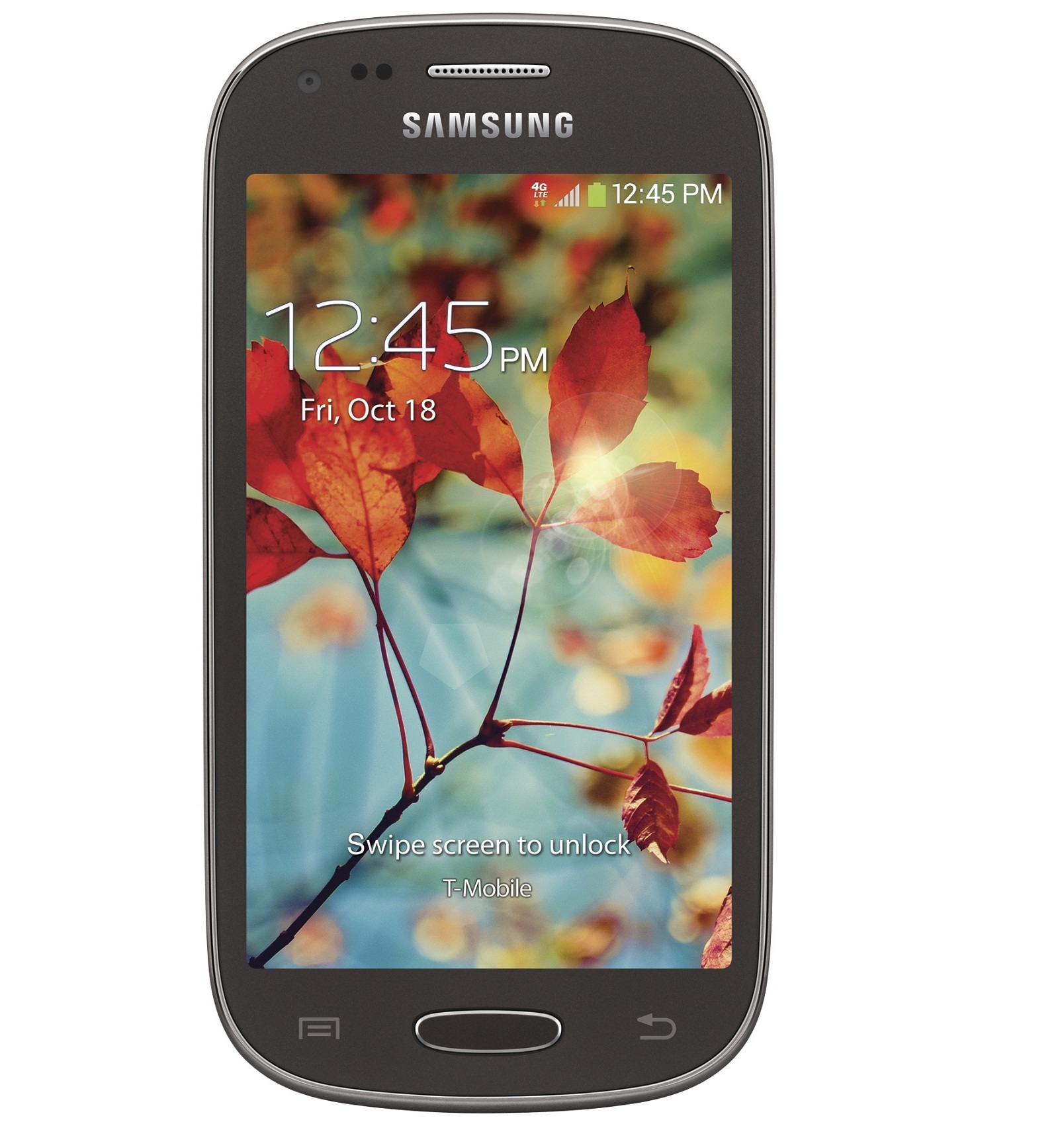
Ever since it was launched in the latter part of 2013 the Samsung Galaxy Light has proved a winner packing in smart and desirable features for less.
Samsung Galaxy Phones WiFi Hotspot
But while few Samsung’s Galaxy phone sets being sold have built-in Wi-Fi apart from Bluetooth and GPS as part of its connectivity features this model being sold in US doesn’t seem to have been endowed with the feature, as it happens.
To let users of the inexpensive phone that is also nicknamed the T-Mobile make use of Wi-Fi the open-ended Android developers have come up with a solution. Phone sets of this model that have been rooted can now be enabled with the Wi-Fi hotspot ability and that too for free!
Steps to Enable Wi-Fi Hotspot on a Rooted Samsung Galaxy Light –
- Download a file explorer which is rooted, preferably from Play Store or on the web. For this use the given link.
- Also download My Hotspot from Play Store using this link.
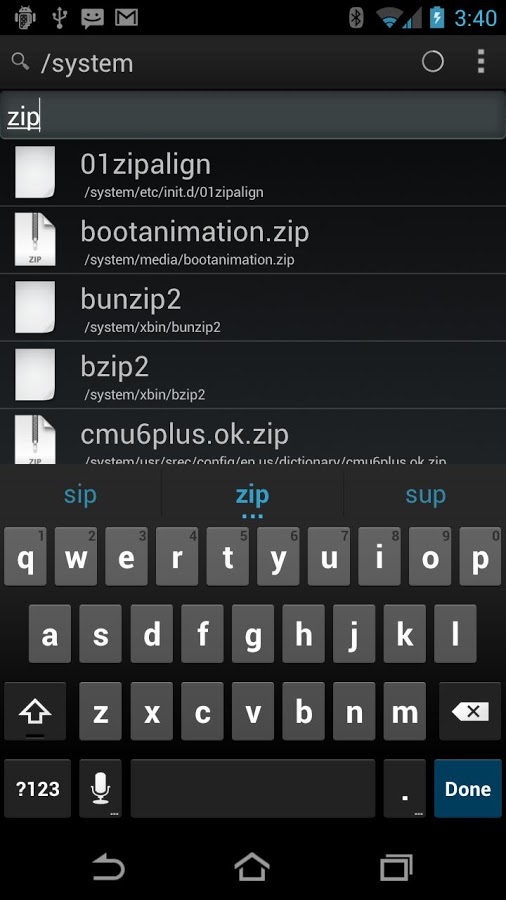
- Open the root browser and go to /system/app where you have to delete the files HotspotProvision.odex & HotspotProvision.apk.
- Reboot the phone now.
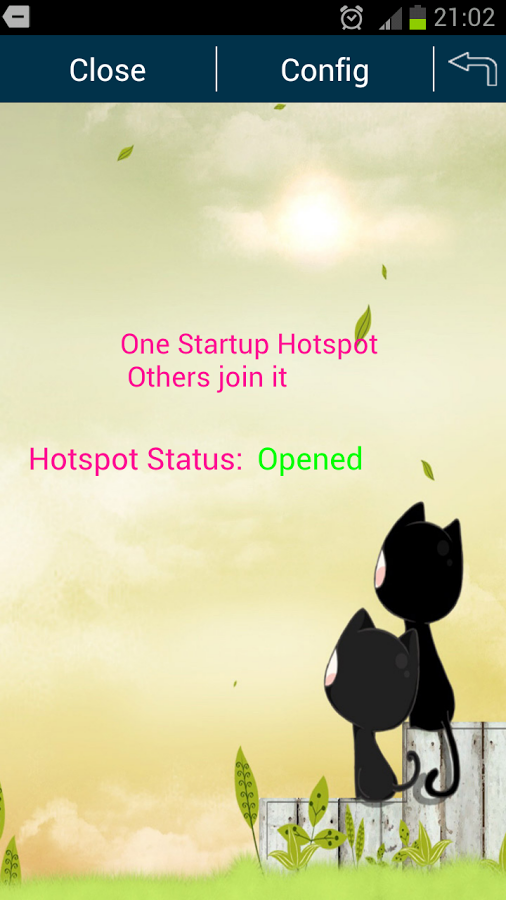
- Go to and open the My Hotspot app to config name, password for the Wi-Fi hotspot. This can also be left open.
- Click ‘Open’ on the top-right for opening up the connection.
Samsung Mobile Hotspot Not Working:
On your Samsung Galaxy phone if the mobile hotspot not working then there are some fixes.
Also Read – Take Screenshot on Galaxy Light
The Wi-Fi hotspot is now connected and the smartphone device can be connected to a laptop, desktop or any other device as required.
You can view phone specifications and compare them with other mobiles at Samsung’s new phones. Just select the device and then click on “Compare” to add another product/phone.
This post was last modified on December 21, 2023 7:32 PM