Galaxy J1 Stock Firmware: Samsung Galaxy J1 users can now go back to stock firmware on their device if they feel that their device is lagging. The problem with the phone is the 512 MB RAM, which makes the smartphone very slow in responding, the latest update has further added more trouble to the mystery.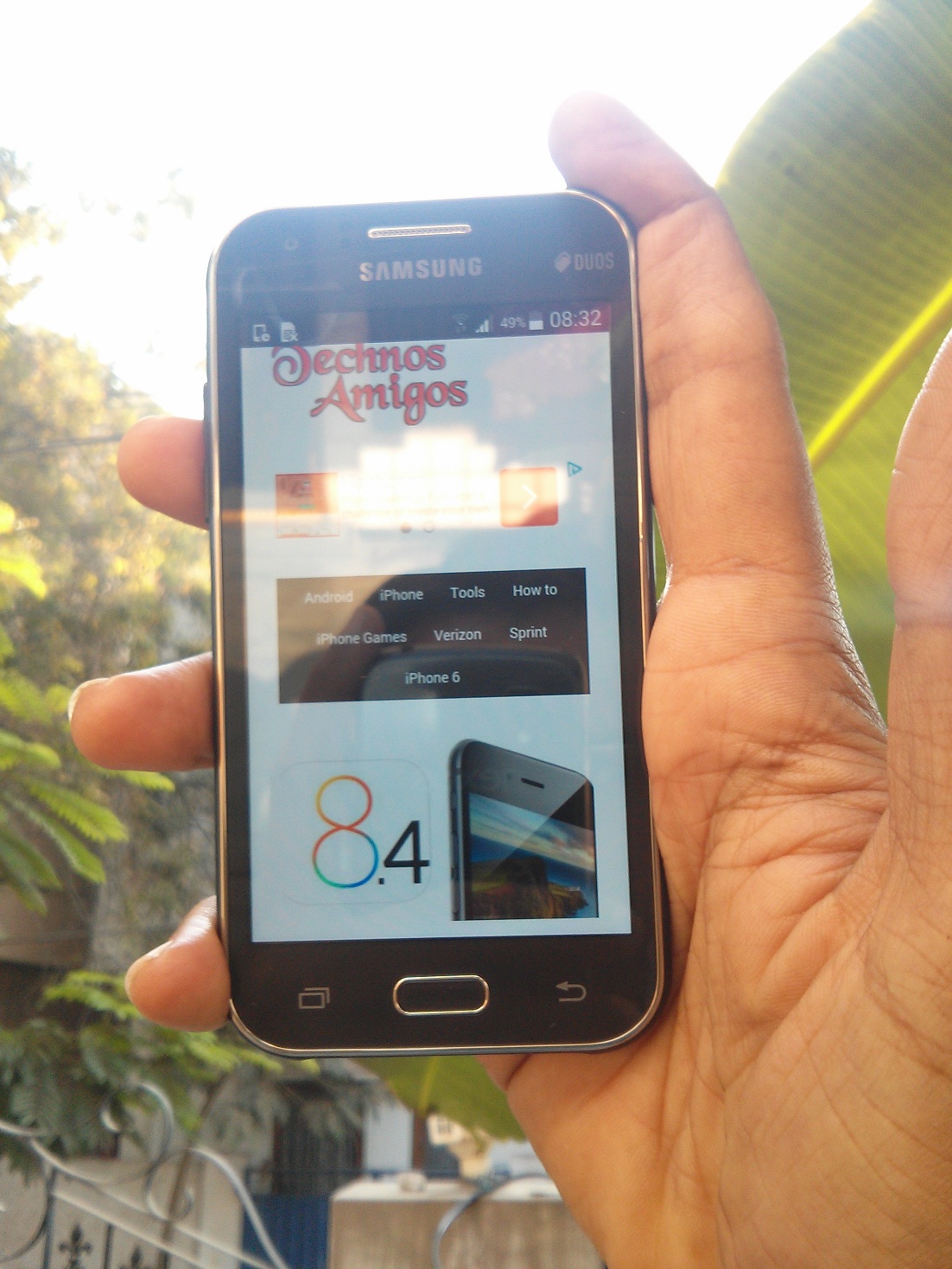
Galaxy J1 Stock Firmware
Here is the guide on how to download Samsung Galaxy J1 stock firmware and install it on your Samsung Android phone.
This process will wipe data on your device, so we advise you to backup everything which is important to you.
Download Links
- Download Samsung USB Drivers and install it on your PC.
- Also download the Odin latest version and install it on your PC.
Flashing Galaxy J1 with Stock Firmware
Download which one corresponding to your model number [to know model number go to Settings > About Phone and find the model number] –
SM-J100F: Download Now
SM-J100H: Download Now
SM-J100G : Download Now
SM-J100M : Download Now
SM-J100FN : Download Now
SM-J100Y : Download Now
How to Flash
- Download Odin and install it on your PC. Also ensure USB drivers are working fine.
- Also download the Stock firmware for Galaxy J1 for your device model. It’s a zip file.
- Move the downloaded zip file to your PC desktop.
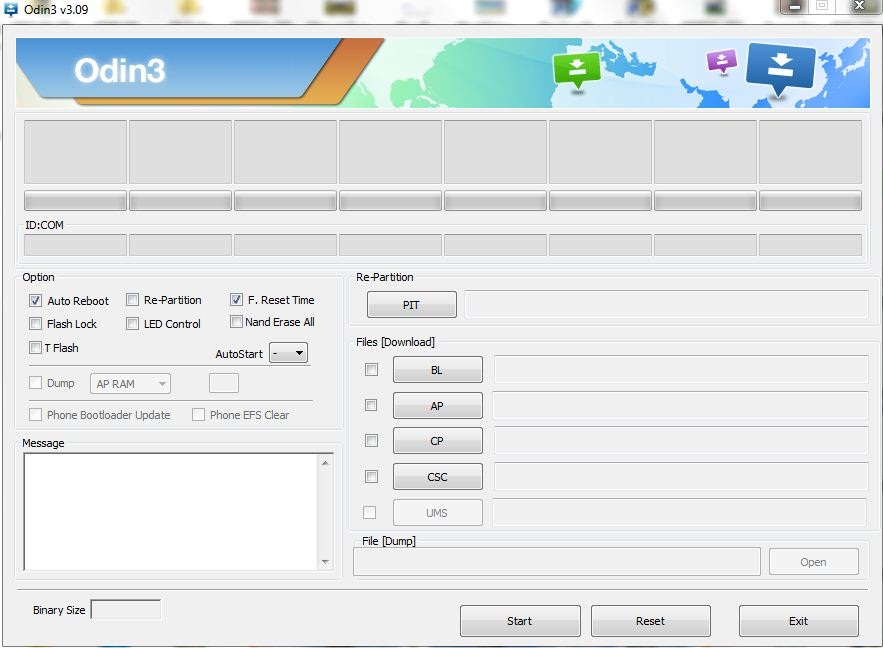
- Unzip the downloaded Galaxy J1 package in a folder on your desktop. It will give you a .tar.md5 file.
- Open Odin now.
- In Odin select AP tab.
- Select the .tar.md5 file, wait for a while until you see “Checking MD5 finished successfully” in the log event on the left side of Odin tool.
- Now connect your phone to PC using USB Cable.
- It’s the time to enter your Galaxy J1 in download mode. First turn off your phone completely. You need to press and hold the Volume down button + Power button and Home button together at once.
- If the device is successfully added, you will get notified in the event log, also ID:COM port will have values as 0:[COM3].
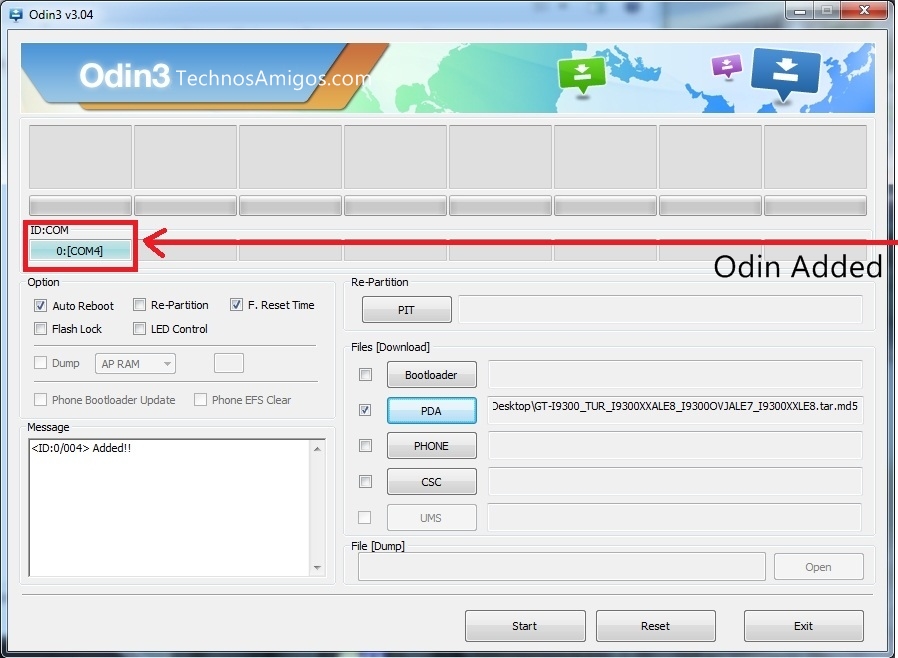
- Now click on Start button on Odin.
- Wait until you see Pass message on Odin.
- Disconnect USB connection now.
That’s it.